
When your account is at risk
What to do if you suspect somebody else signed in: end sessions, change the password, switch on the second factor, bring in support. In that order.
· 읽는 시간 3분
이 가이드는 독일어와 영어로 제공됩니다. 지금은 영어 버전을 보고 있습니다.
If you see a sign-in you cannot account for, or get a notice about a change you did not make, the order matters more than the hurry. These four steps in this sequence.
Step one: end the unfamiliar sessions
Under Settings, Security, at the bottom, sits Active sessions. It lists the devices your account is signed in on, with the current one marked as such.
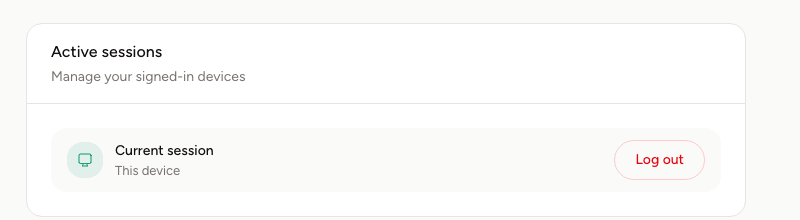
Sign out everything you cannot place. This comes first because an open session elsewhere would otherwise keep running while you change the password.
Step two: change the password
In the same area sits Change password. Use one you do not use anywhere else.
If you sign in through Google or Apple and never set a password, change the password on that account instead, since that is what your access runs on.
Change your email password at the same time if you used the same one there. The mailbox is the way back into every account and therefore the most rewarding target.
Step three: switch on the second factor
If it is not on, now. A second factor prevents exactly what just happened: a password on its own being enough.
The way there is in Setting up two-factor authentication. A passkey is the most convenient variant and is covered in Signing in with a passkey instead of a password, but it does not replace the second factor.
If the second factor was already on, generate fresh backup codes. The old ones stop working, in case somebody got hold of them.
Step four: check what was changed
Take the time to look at whether anything was left behind.
Your email addresses. Is there a backup address you do not recognise, or a pending address change? Both are a standard way of keeping access open. Covered in Managing your profile and email addresses.
Your passkeys. An entry you do not recognise belongs removed.
Your spaces and messages. Was anything changed, deleted, or written in your name.
If you cannot get in at all
Use forgotten password on the sign-in page. If you have lost access to the mailbox too, the backup address you stored is the next route.
If neither works, write to support. Expect that we have to verify your identity before changing anything, and that this takes time. That hurdle is precisely why an attacker cannot take this route either.
How to spot an attempt
Two lines that always hold and that save you most cases.
We never ask for your password. Not by email, not by phone, not in a support conversation.
We never ask you to pay for a space. What you pay us, you pay through the billing in your account. Anyone in a conversation demanding a deposit, a reservation fee or payment up front is a case for Reporting a listing under suspected fraud.
And one practical habit: do not click links in emails when you are unsure. Open spacement.co yourself and sign in there. Anything genuine you will find that way too.
자주 묻는 질문
- What do I do first?
- End the unfamiliar sessions, then change the password. In that order, otherwise the other session stays open on the old access.
- What if I cannot get into my account at all?
- Use forgotten password. If you have lost the mailbox too, the backup address is next, and after that support.
- How do I recognise a genuine email from Spacement?
- We never ask for your password and never ask you to pay for a space. When in doubt, do not click the link; open the site yourself.
- What if my backup codes are gone?
- New ones can be generated in the security settings. The old ones stop working when you do.
- Should I delete my account?
- Only as a last resort. Deleting is final and takes your messages and unlocks with it.