
Set up two-factor authentication
How to add a second factor to your Spacement account using an authenticator app, an emailed code or a passkey, and how backup codes get you back in if you lose the device.
· 阅读时间 2 分钟
本指南提供德语和英语版本。你正在阅读英语版本。
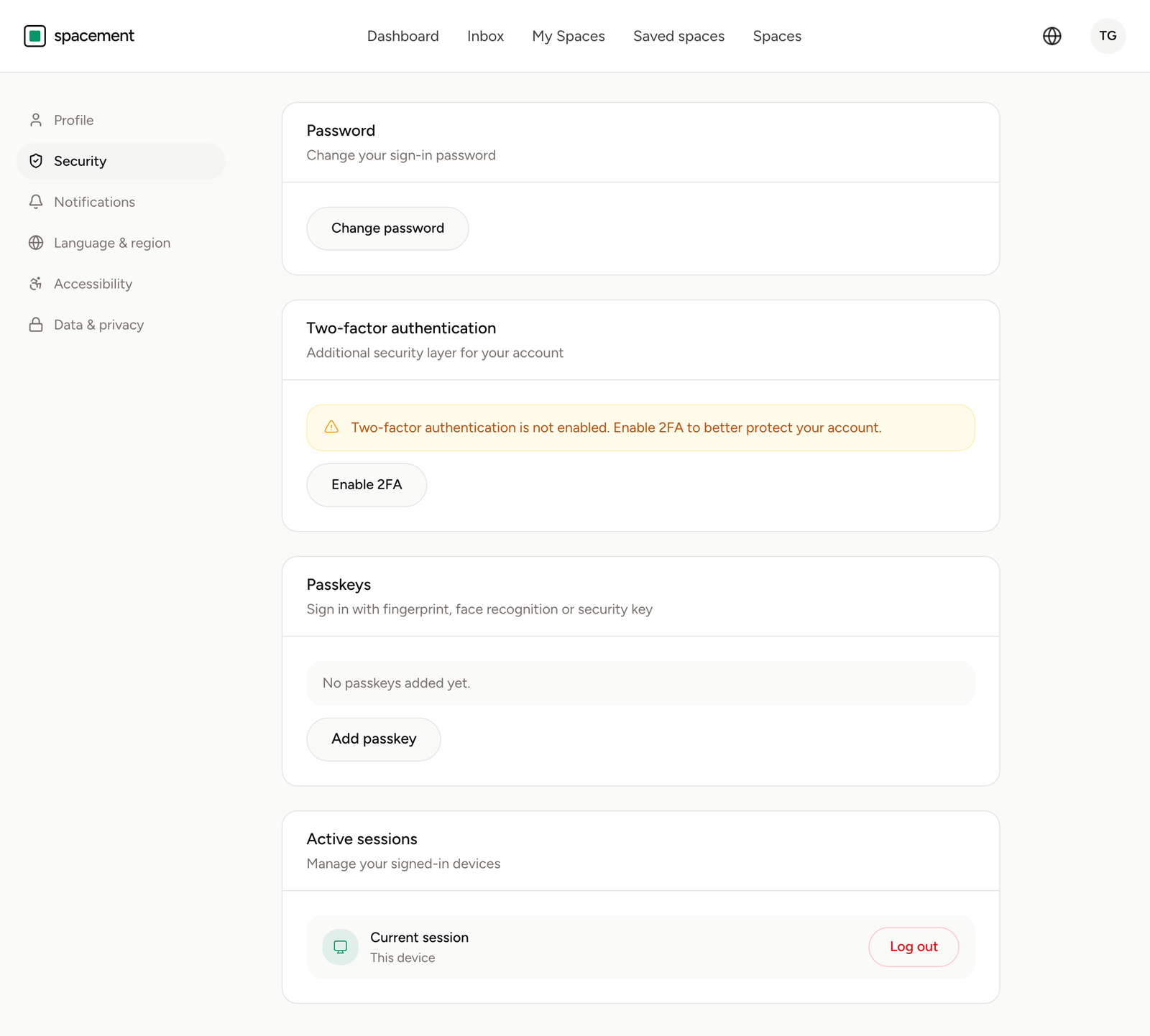
A second factor means a stolen password is not enough to get into your account on its own. You set it up under Settings, Security. It takes about two minutes.
The three methods compared
Spacement supports three options. Exactly one can be active at a time.
| Method | How it works | Good if |
|---|---|---|
| Passkey | Fingerprint, face recognition or a security key | You want the shortest route and your device supports it |
| Authenticator app | Six-digit code that changes every 30 seconds | You already use an app such as 1Password, Aegis or Google Authenticator |
| Emailed code | Six-digit code sent to your registered address | You would rather not install another app |
A passkey cannot be typed out, which means nobody can talk you into reading it down the phone. That is why it sits at the top of the table.
Step by step
- Open Settings from the profile menu in the top right.
- Go to the Security section.
- Under two-factor authentication, click Enable 2FA.
- Pick a method. The authenticator app gives you a QR code to scan, the email option sends you a code, the passkey asks your device to confirm.
- Enter the code or confirm on the device. The second factor is now active.
Right after setup, Spacement shows your backup codes once. Store them somewhere you can reach without your phone. A password manager or a printout in a folder both do the job.
Backup codes
Backup codes are the way back in. Each one covers a single sign-in and is spent afterwards. Your security settings show how many are left, under the two-factor section.
You can issue a fresh set at any time with Regenerate backup codes. The old list stops working the moment you do. That is the right move whenever you are unsure who might have seen it.
What changes at your next sign-in
After your email and password, Spacement asks for the second factor. With an authenticator app or an emailed code you type six digits. With a passkey you confirm on the device.
If you sign in with a passkey that also verifies you, by fingerprint or PIN, that is enough on its own. A passkey without that check counts as a single factor and is only accepted as the second step after a password.
Turning it off again
Switching the second factor off needs your password and a valid second factor. That is deliberate. Somebody who sits down at an unattended session should not be able to strip the protection in two clicks.
常见问题
- Which method is the safest?
- A passkey, because it is tied to your device and cannot be read out and typed somewhere else. An authenticator app is the next best. The emailed code is the weakest of the three, since it is only as protected as your inbox.
- What happens if I lose my phone?
- You sign in with one of your backup codes. Each code works once. If the codes are gone too, only support can help, and that route takes time because we have to establish who you are.
- Can I change the method later?
- Yes. Turn off the current method in your security settings and set up the new one. Turning it off needs your password and the second factor that is currently active.